![Hearo profile Image-2.png]](https://learn.hearo.net/hs-fs/hubfs/Hearo%20profile%20Image-2.png?width=50&height=50&name=Hearo%20profile%20Image-2.png)
To view more in-depth information, you will need to go to the Location Details page.
To get to the Location Details page from your Hearo Remote Dashboard, click on the Location image to view the Location menu and select "Details".
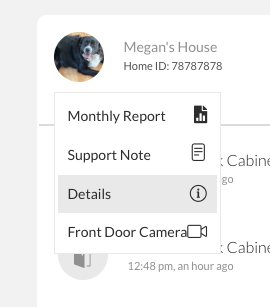
Once on the Location Details page you'll find:
Physical Location Information

At the top of the Location dashboard you'll find the Location name and full Location address.
Underneath that, you will find a green clock icon with a time showing the last time a sensor checked in with the location.
Hearo records data in addition to what you see in the sensor logs (such as battery status of a sensor). While this information isn't relevant for most remote support function, it can inform you that the Hearo system is running and receiving data from sensors inside the Location.
Beside those details you'll find a call/phone icon, which will call any device logged into that Location that isn't associated with a specific Individual.
Action Buttons

To the right of the physical Location information you'll find a button displaying the most recent monthly report for the Location.
To the right of this there is another button, which will take you to the Location Settings page. Once there, you can edit Location information.
Main Devices
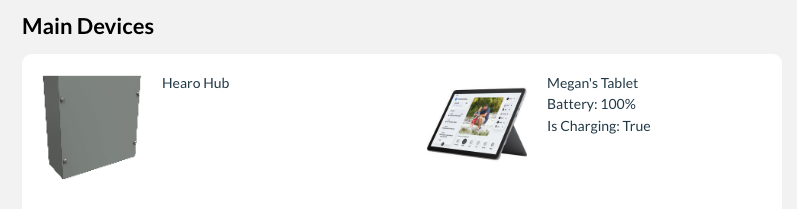
Under the Main Devices heading you'll find a list of devices (tablets, mobile phones, Hearo Hubs, etc.) associated with the Location.
If there is a Hearo tablet, it will show the name, battery status, and whether or not it is currently charging.
Individuals
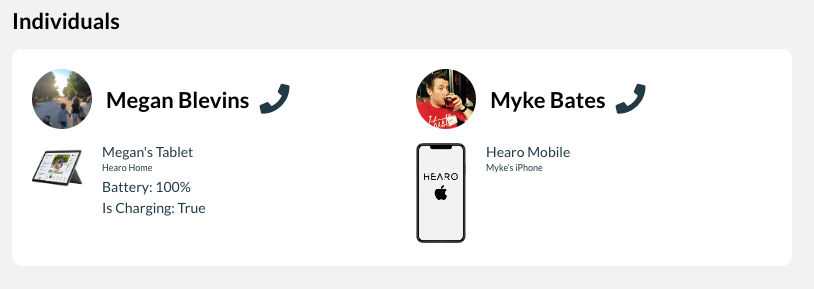
Under the Individuals heading you'll find a list of Individuals that are associated with this Location. You'll have easy access to initiate a call with the Individual directly, and can view the status of the devices that are assigned to them.
Logs
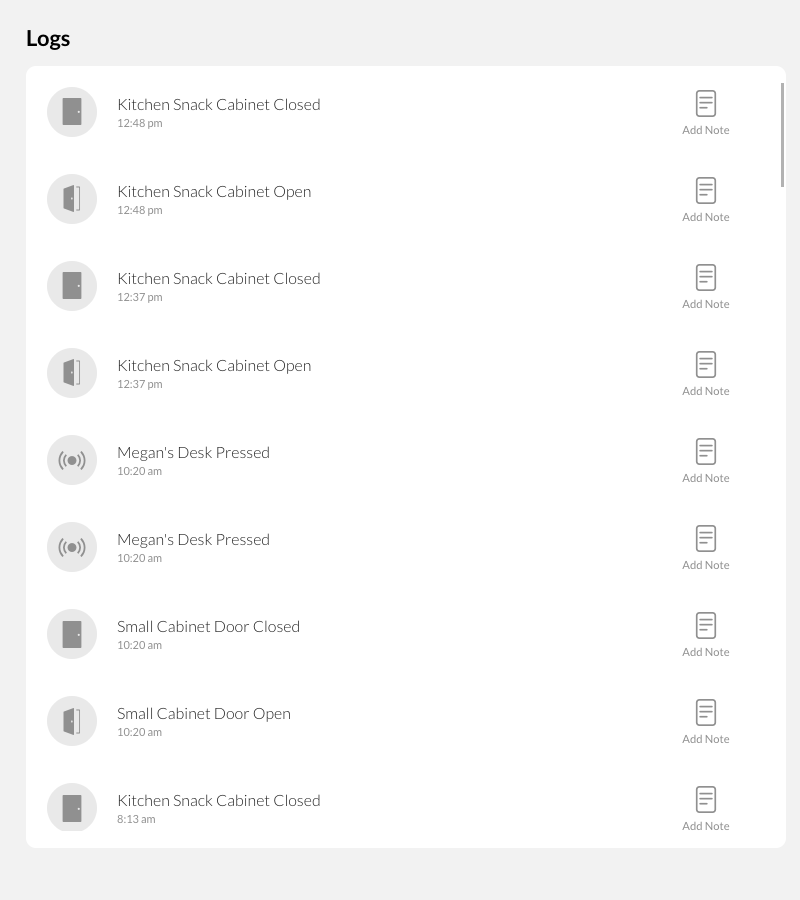
Similar to the Hearo Remote Supports Dashboard, under the Logs heading you'll find a list of the most recent logs for that Location.
Location Support Note
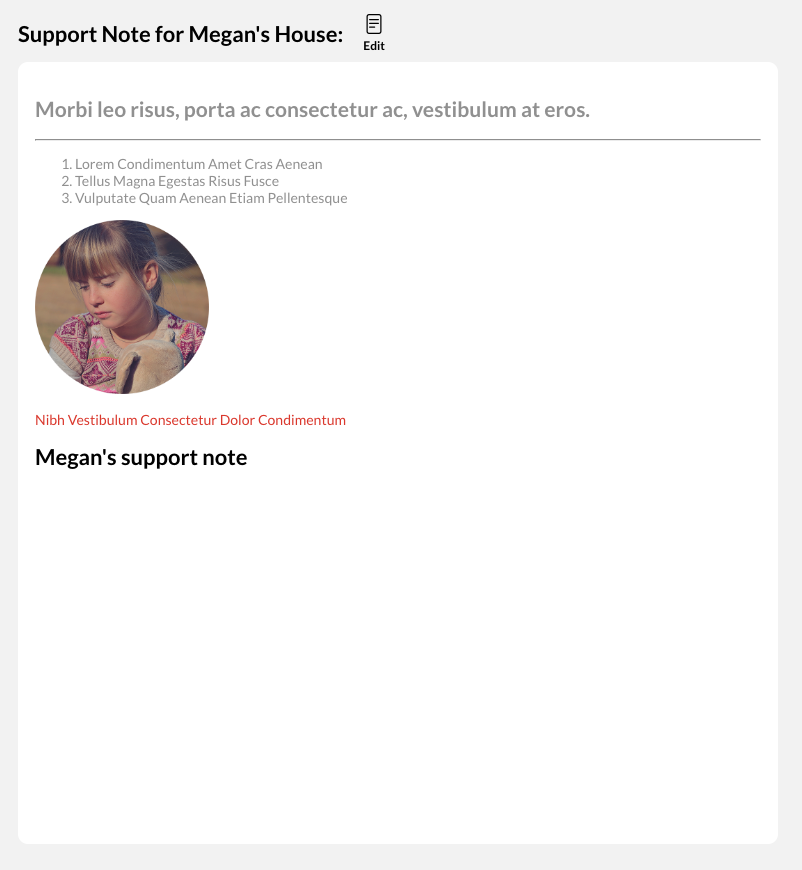
Along with being able to add and edit a support note to the Location from the Remote Supports Dashboard, you can view and edit the Location's support note from the Location Details page. To learn more about support notes, check out out our Knowledge Base article.
Sensors
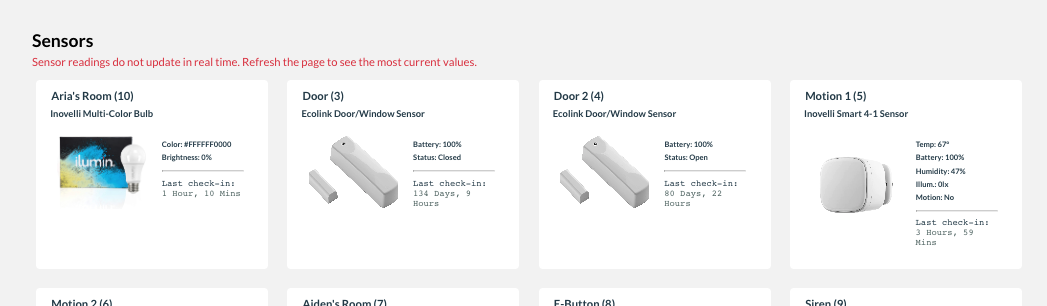
One of the most informative areas on the Location Details page is the list of sensors currently installed.
At the top of each sensor block, you'll find the placement of each sensor along with the sensor ID in parentheses. Below that, you will find the exact type of sensor it is. Below that, you'll see an image of what that sensor type looks like.
Beneath all of this sensor information, you'll find the most recent values that particular sensor has sent to the Hearo system. Please note that these values do not update in real time.
If there is an update to the sensor values since you've loaded the page, you'll see a red information icon with an exclamation point like this:
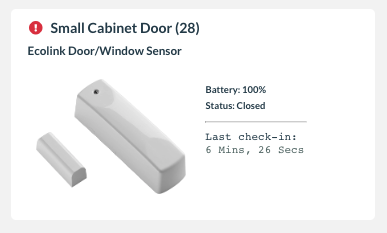
This is to let you know there are new values for the sensor and that you need to refresh the page to view the most recent reported values.
Below the dividing line you'll find the last time the sensor checked in with the Hearo system.
Finally, if the sensor is battery-powered and is at or below 20% battery, it will display a red button that links to a YouTube video with instructions as to how to change the sensor battery.
If you click on one of the sensors, you'll be able to see more details:
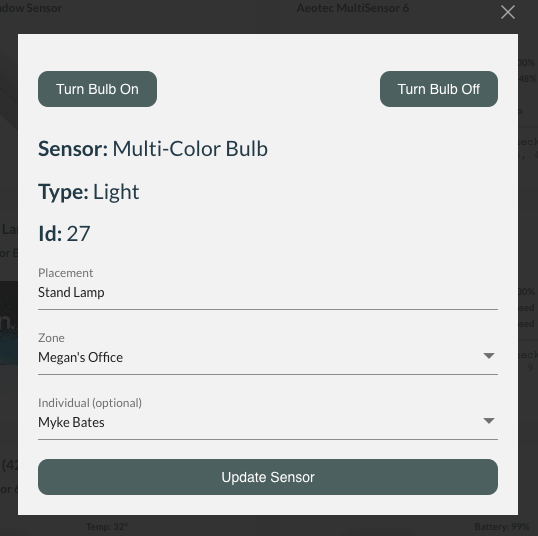
You can update the placement, zone, and Individual assigned to this sensor.
And, if the sensor is a lamp or smart switch, you'll be able to turn either of them on and off remotely.
Outage History
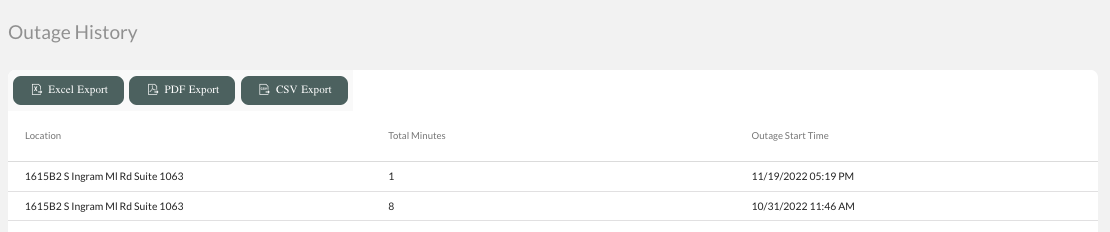
Finally, at the bottom of the Location Details page you will find a table displaying the Outage History for a particular Location.
In here, you will see "Outage Start Time"; this is when devices were first unable to communicate with the Hearo system. It also logs the duration for which they were offline in total minutes.
You're able to export the data in this table in Excel, PDF and CSV formats.