![Hearo profile Image-2.png]](https://learn.hearo.net/hs-fs/hubfs/Hearo%20profile%20Image-2.png?width=50&height=50&name=Hearo%20profile%20Image-2.png)
Examples of Geofence rules may include the following:
- Identifying when someone has arrived at home, work, or school.
- Alerting staff if someone has left the home overnight.
Setting up Geofences
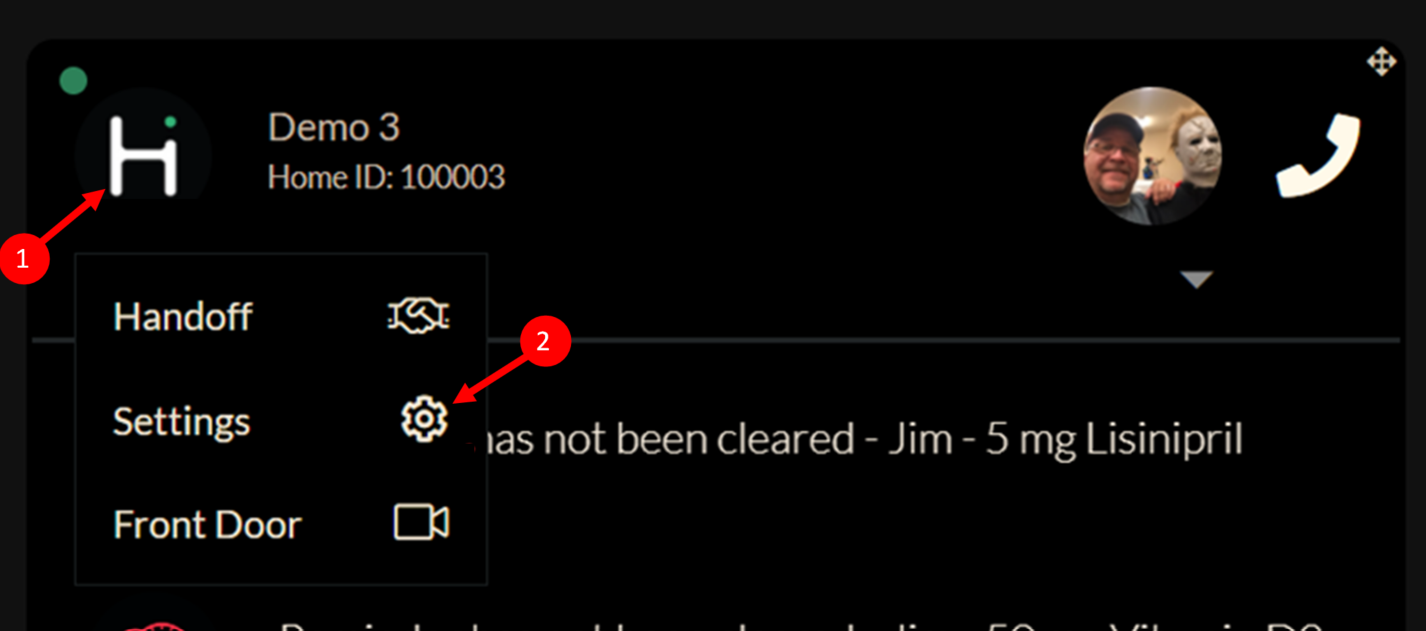
1 - From the main dashboard, click on the Hearo Location icon for the Location of the Individual that you'd like to set the rule up for. This will open a dropdown menu as seen below.
2 - Click on Settings. This will bring you to the Edit Location/Location Settings screen.
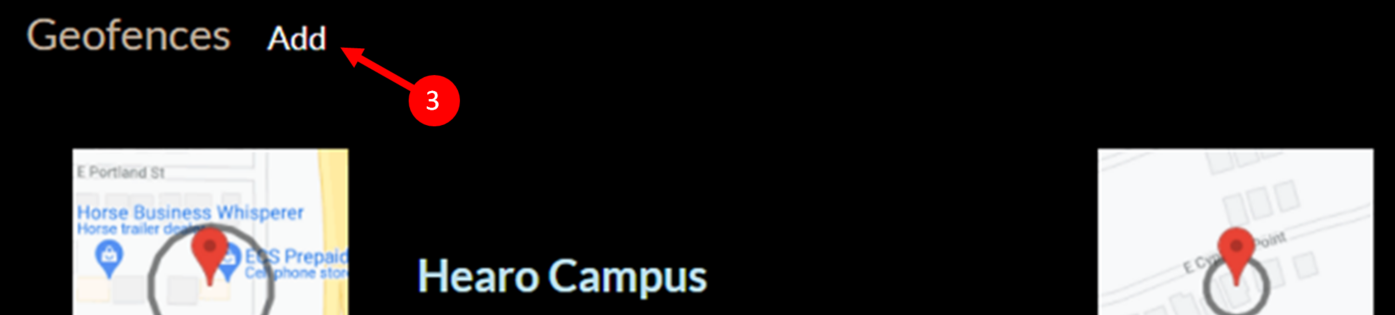
3 - Scroll to the bottom of the page; this is where the Geofence section is located. Then, select "Add".
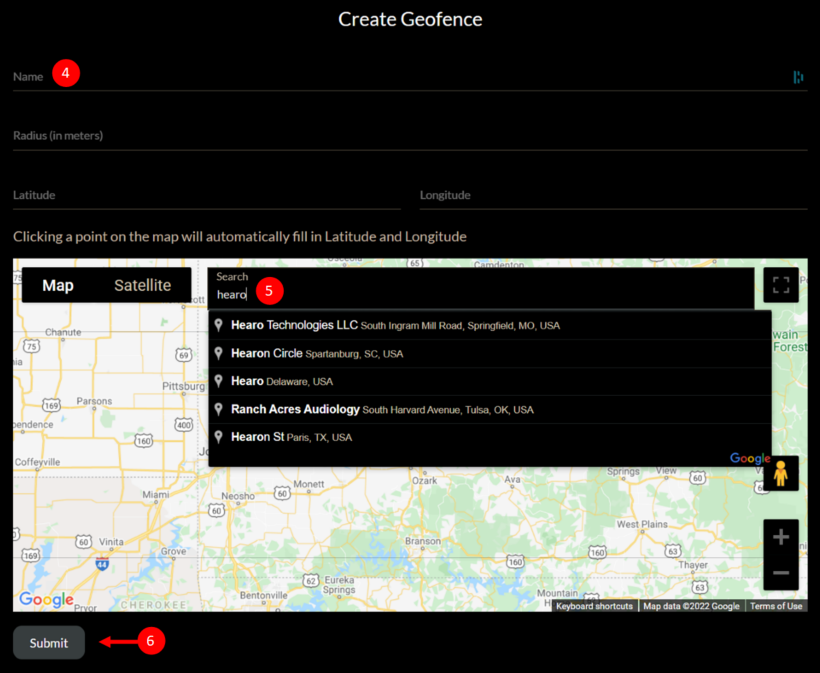
4 - Name the Geofence. We suggest using the name of the Individual whom the rule is for, as well as the location, in the name. For example: Jim's workplace.
Note: You can skip Radius and Latitude/Longitude unless you want to make modifications later.
5 - Begin typing the name or address of the location that you are searching for until the correct selection appears in the box. Select the correct location from the search box.
6 - Click the Submit button when satisfied.
The Geofence will now be listed at the bottom of the Location Settings page for use in Rules related to the Location or its residents.
Setting up Rules that utilize Geofences
- Navigate to the Advanced Rules section of the Location that you are setting the Rule up for.
- Name the Rule something that is easy to identify. For example: Jim arriving at work.
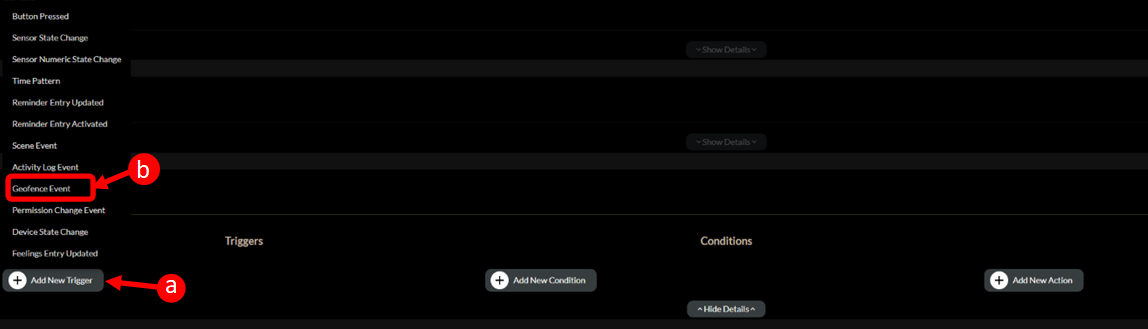
A - Click the Add New Trigger button.
B - Select Geofence Event from the menu.
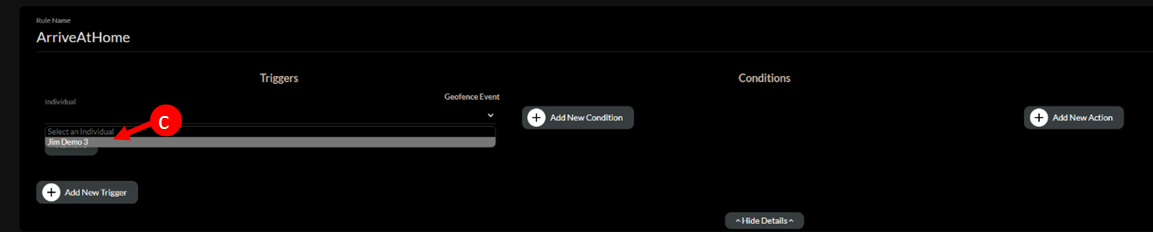
C - Select which Individual whom you want this rule to apply to.
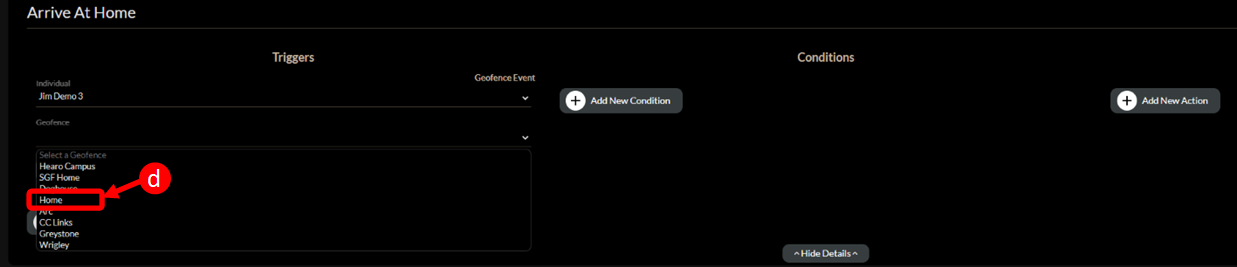
D - Select which Geofence that you want to be used for this Rule.
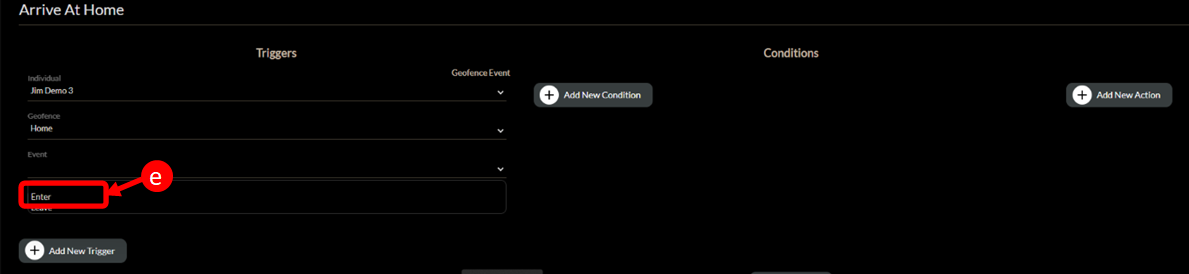
E - Choose whether you want this rule to be triggered when an Individual enters or leaves the selected Geofence boundaries.
From there you can add other Triggers, Conditions, and Actions to make the Rule work the way you'd prefer it to.