![Hearo profile Image-2.png]](https://learn.hearo.net/hs-fs/hubfs/Hearo%20profile%20Image-2.png?width=50&height=50&name=Hearo%20profile%20Image-2.png)
Watch the tutorial
Next to each sensor log in the Hearo Dashboard is an icon labeled "Add Note". Clicking on this will allow you to add a short note to the sensor log that anyone with access to this Location can view.

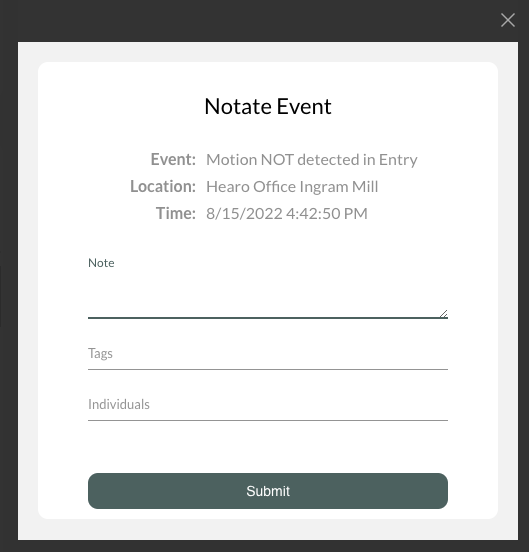
Only the note is required; the Tags and Individuals fields are optional.
Required Notes
You can require a note on an emergency in order to clear it. An emergency log that requires a note to clear will look like this:
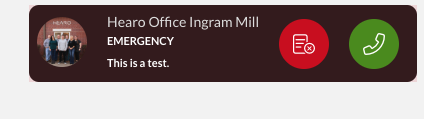
To clear an emergency that requires a note, click on the red note icon.
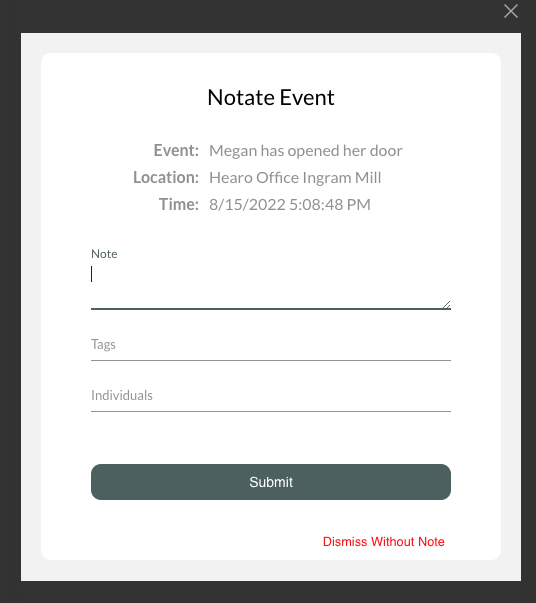
Then you can enter a note about the event, or you can clear the emergency without a note using the red link that reads "Dismiss Without Note" in the bottom right-hand corner of the pop-up screen:
Require An Emergency Note Setting
There are a few ways to enable the feature to require a note from the provider on an emergency.
1) Company Level
- In the company settings, you can choose to require notes for all Locations associated with that company. Note: Locations are able to override this setting individually. 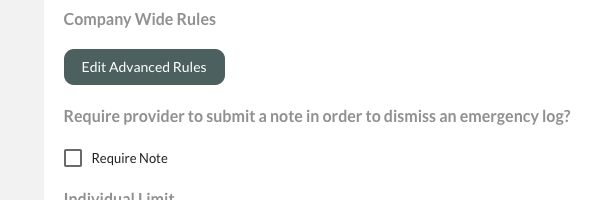
2) A location can set its own rules about requiring a note.
- Initially, a Location will default to the company-wide setting.
- In the Location Settings page, you can set the Location to either require, not require, or inherit the company settings.
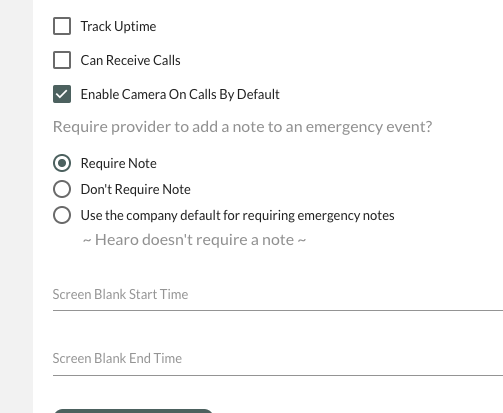
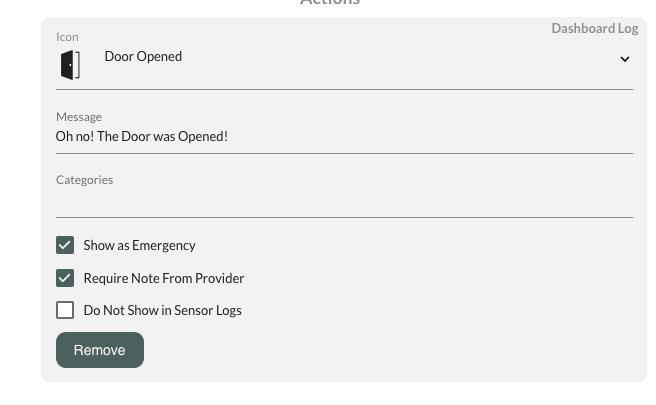
3) Finally, you can force a specific rule in the Advanced Rules section to require a note. Note: if the Location requires a note, you can't override that setting. However, if the Location doesn't require a note, you can choose to require one here.
Viewing All Sensor Log Notes
You can see all sensor log notes for the Locations you are associated with by clicking on the "Log Notes" navigation item.
This table defaults to only display the notes for the past 24 hours. You can view more by adjusting the start and end dates in the filters.
You also have the ability to export the current table (filters applied) using the buttons at the top.
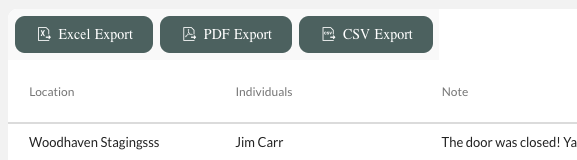
Sensor Log Table Values
Location: The name of the Location the Sensor Log was associated with.
Individuals: The names of the Individuals marked in the Sensor Log Note.
Note: The contents of the Sensor Log Note.
Tags: Tags associated with the Sensor Log Note.
Sensor Log: The description from the Sensor Log the note is associated with.
Created By: The provider who created and added the note to the Sensor Log.
Reaction Time: Time, displayed in minutes, between when the Sensor Log was created and when the Note was added. If the log was NOT an emergency, this will be "--" or not applicable.
Date: Time the Sensor Log Note was added.