![Hearo profile Image-2.png]](https://learn.hearo.net/hs-fs/hubfs/Hearo%20profile%20Image-2.png?width=50&height=50&name=Hearo%20profile%20Image-2.png)
You will need to have a Hearo User account before you will be able to log in to the mobile application. Please reach out to the relevant party to ensure a request has been made to create an account. Once created, you will receive an email prompting you to set a password for your account. After this step is finished you will be able to log in to the mobile application with those same credentials.
If you do not know who to reach out to, please send an email to support@hearo.net with your name, desired email address to use, phone number, and the Individual you are associated with, as well as the company name that is providing remote supports.
1. Install the correct version of the app from the links below.
|
|
|


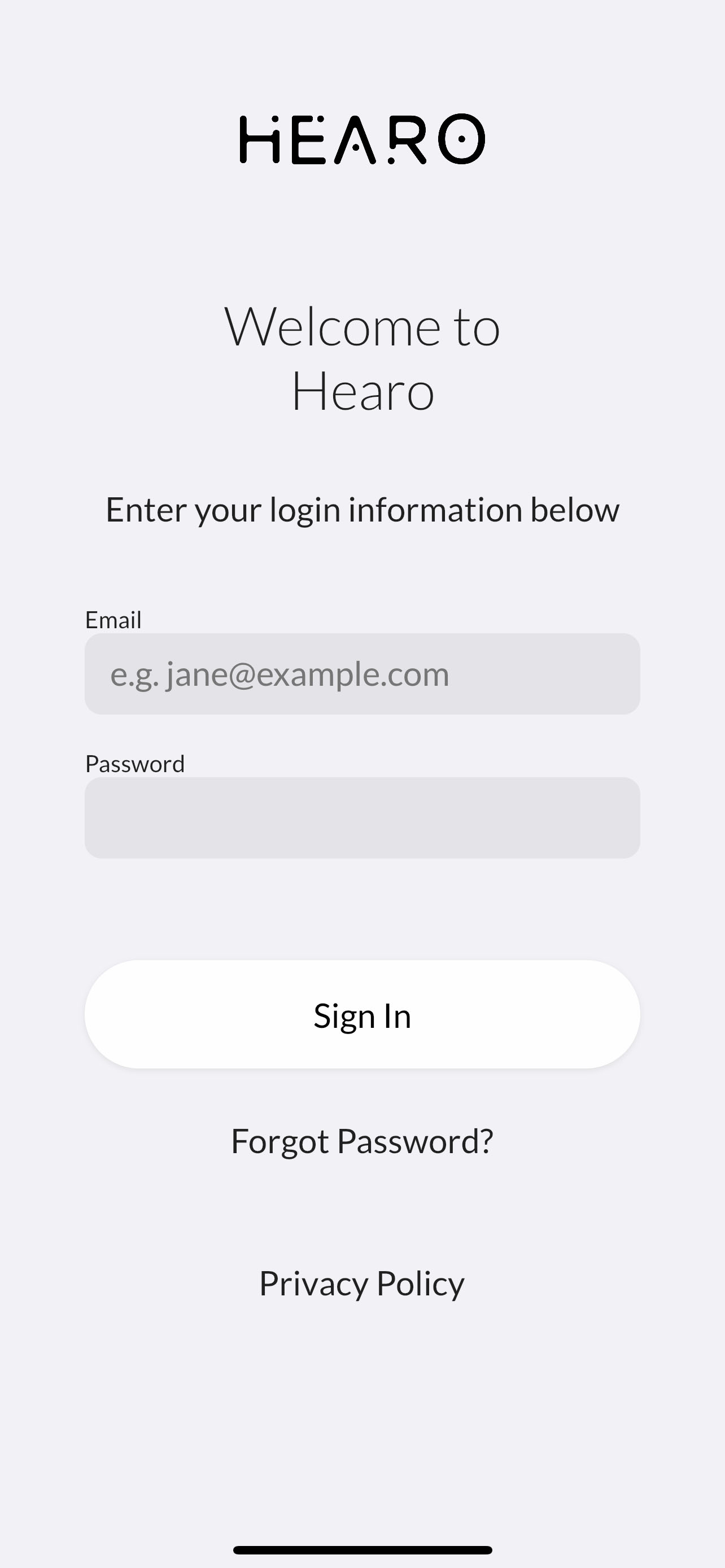
2. Log in to the app using staff or family credentials and press the Sign In button.
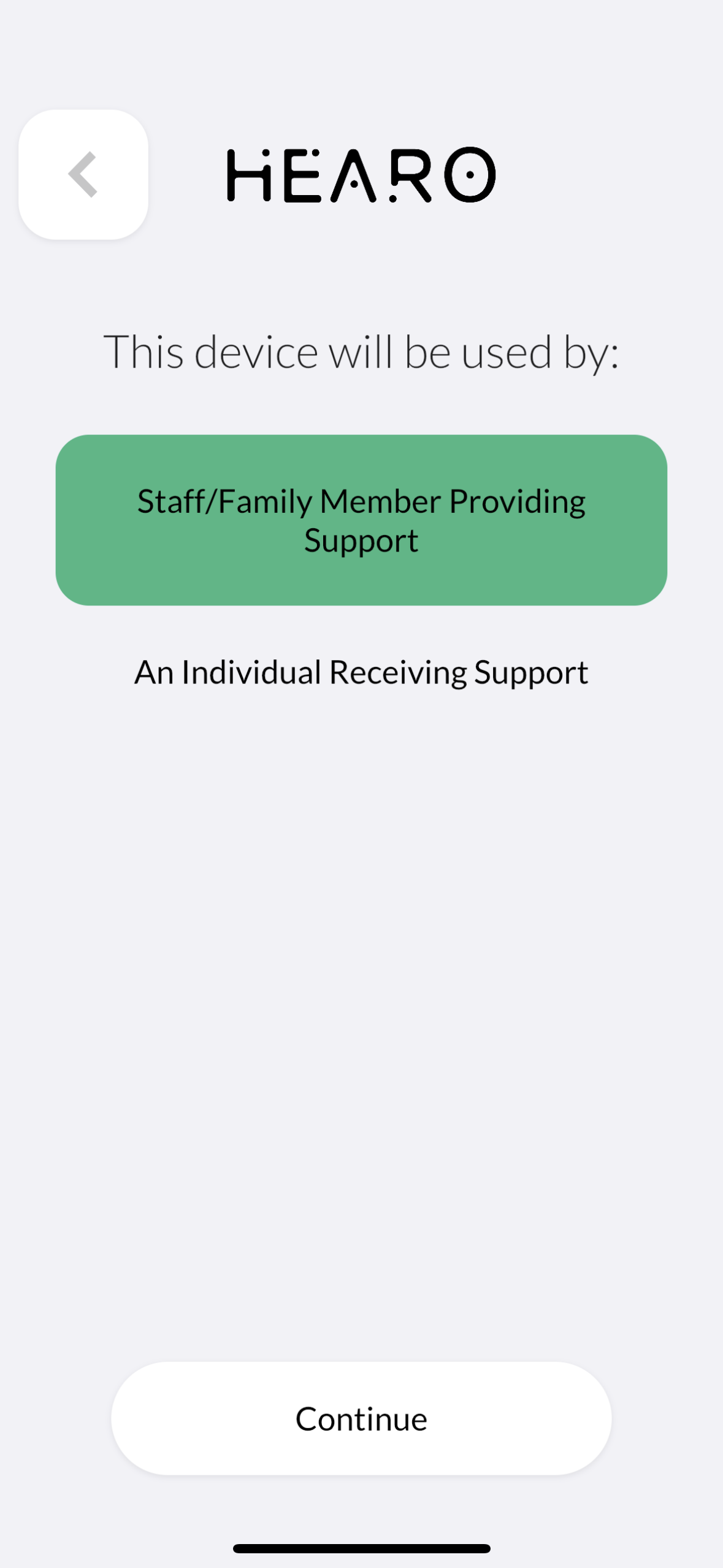
3. Select "Staff/Family Member Providing Support" and press the Continue button.
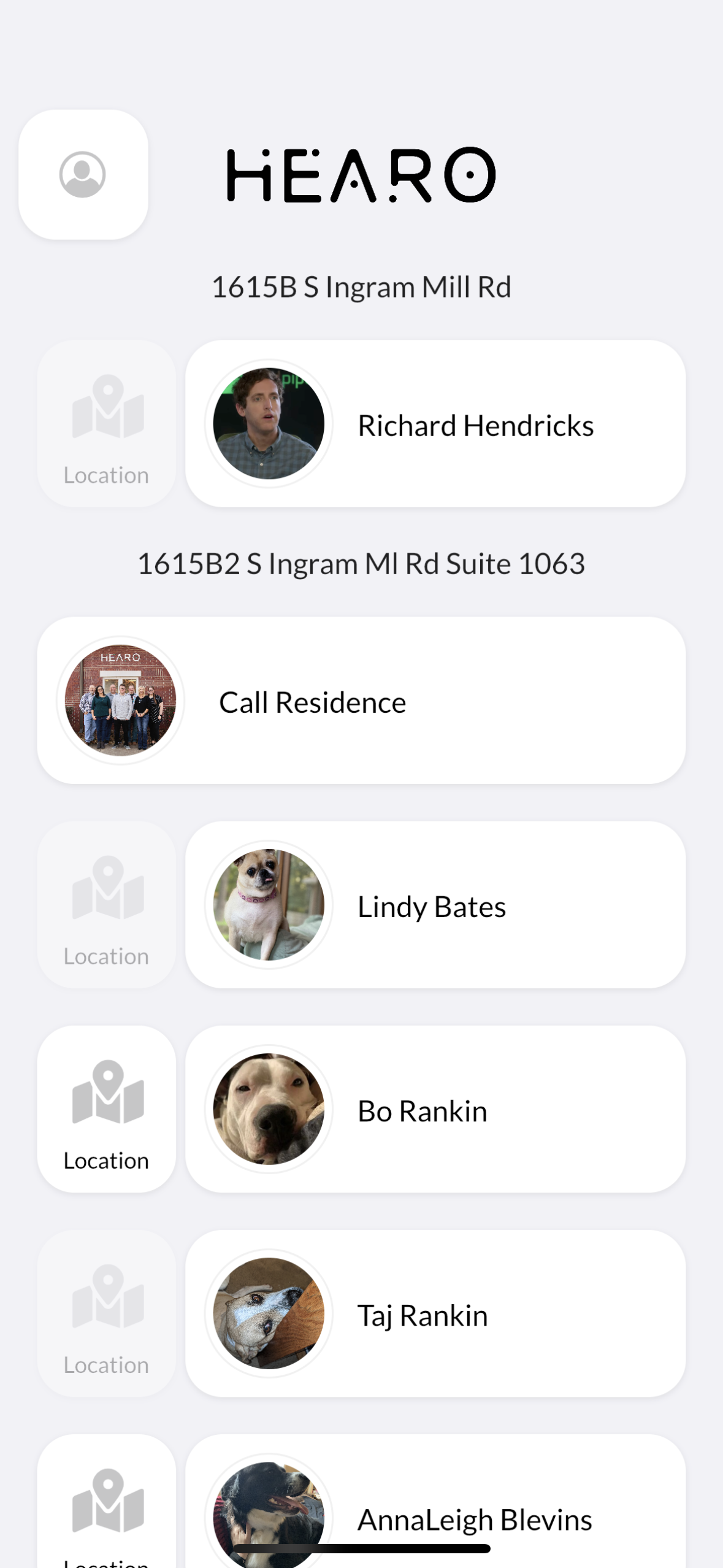
4. At this point you will see a list of Locations and Individuals that you have access to. To place a call to their device, simply tap on their name/Location. Also note, if they are using a personal mobile device and have location services turned on, you will see a "Location" button next to their name. Tapping on this will display the latest GPS location captured from their device.