![Hearo profile Image-2.png]](https://learn.hearo.net/hs-fs/hubfs/Hearo%20profile%20Image-2.png?width=50&height=50&name=Hearo%20profile%20Image-2.png)
If you are using the first version of the Hearo tablet UI, you can view the contact list by clicking on the Calling Circle icon in the lower right-hand corner of the screen.

And, if the tablet is running the second version of the Hearo UI and it looks like what is displayed directly below, the contacts will be listed below the primary support User individually.
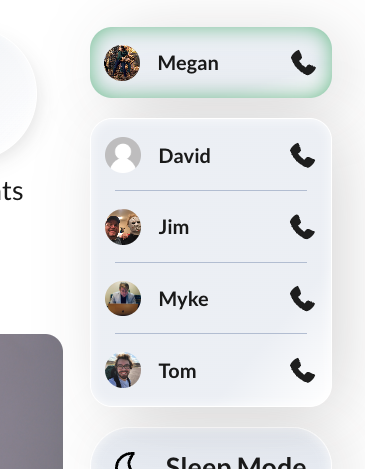
When you have a person (contact) you would like to add to the contact list, first check to confirm whether or not they are currently a Hearo User. If they are not, please follow the instructions in our Creating Hearo Users article.
Once your contact has been added as a Hearo User, you'll need to associate them with the Individual.
First, in the Hearo Dashboard, click on the Individuals button in the navigation menu toward the top of your screen.

From here, search for the Individual you would like to add the contact to, and click on their name. The "Edit Individual" pop-up will then display like this:
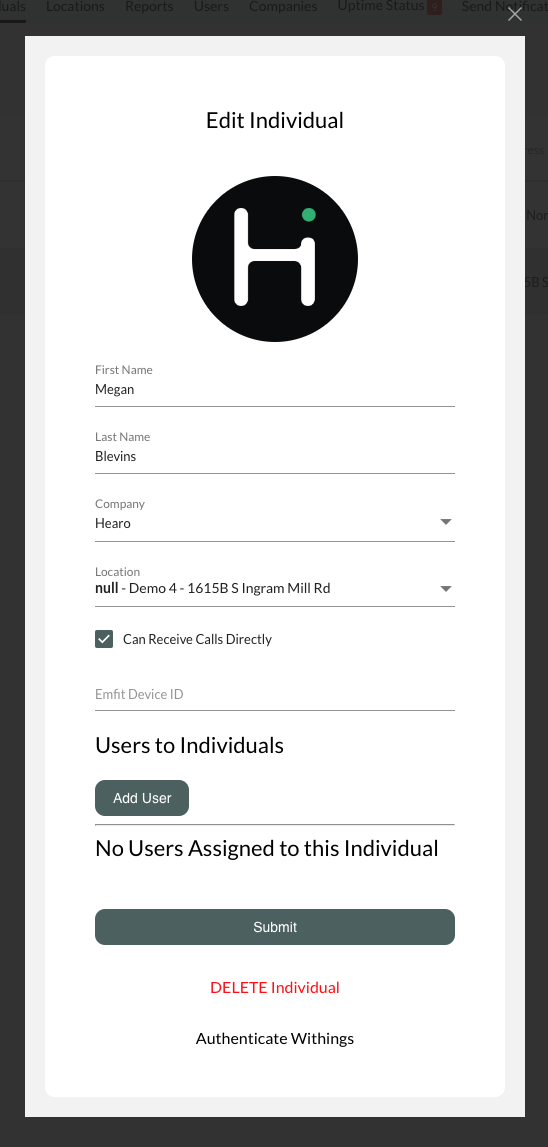
First, confirm that the "Can Receive Calls Directly" box is check marked. If it is not, the Individual won't be able to receive calls on their tablet.
Near the end of this form you will see "Users to Individuals". If there are no current contacts for this Individual it will say "No Users Assigned to this Individual". If there are current contacts, you will see their names displayed.
To add a contact, click on "Add User". The form will display a few more fields that look like this: 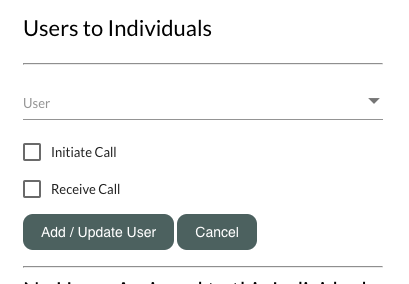
First, select the User you would like to add from the dropdown menu. The list will be populated with all current Hearo Users within your organization.
For example, let's say we have an Individual named Paul and we're adding a contact named Susan. If we check the "Initiate Call" checkbox, Susan can now call Paul. If we check the "Receive Calls" checkbox, Paul can now call Susan.
Next, click the Add/Update User button, and the User will be included in the list of contacts.
Finally, click Submit on the Edit Individual form to save your changes.