![Hearo profile Image-2.png]](https://learn.hearo.net/hs-fs/hubfs/Hearo%20profile%20Image-2.png?width=50&height=50&name=Hearo%20profile%20Image-2.png)
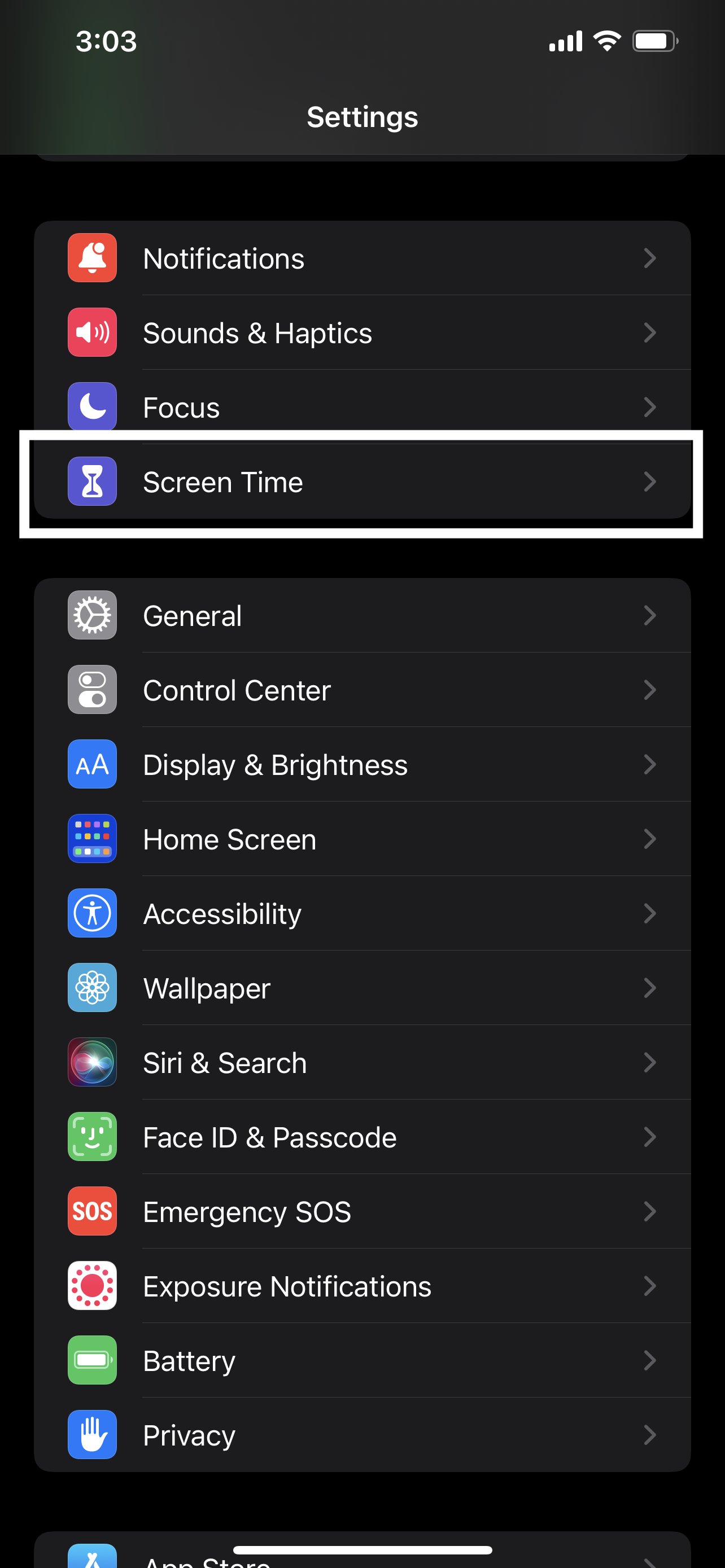
- Open the Settings app and go to Screen Time.
-
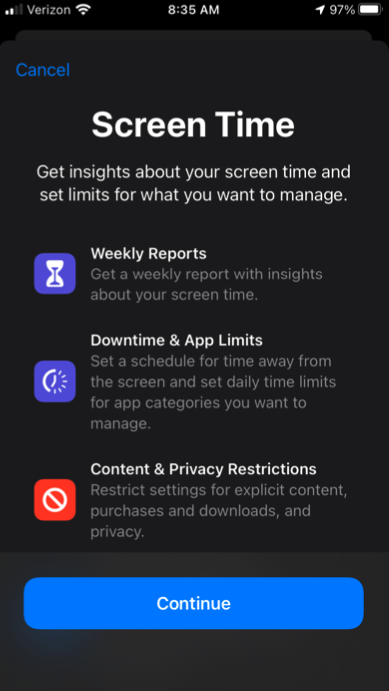
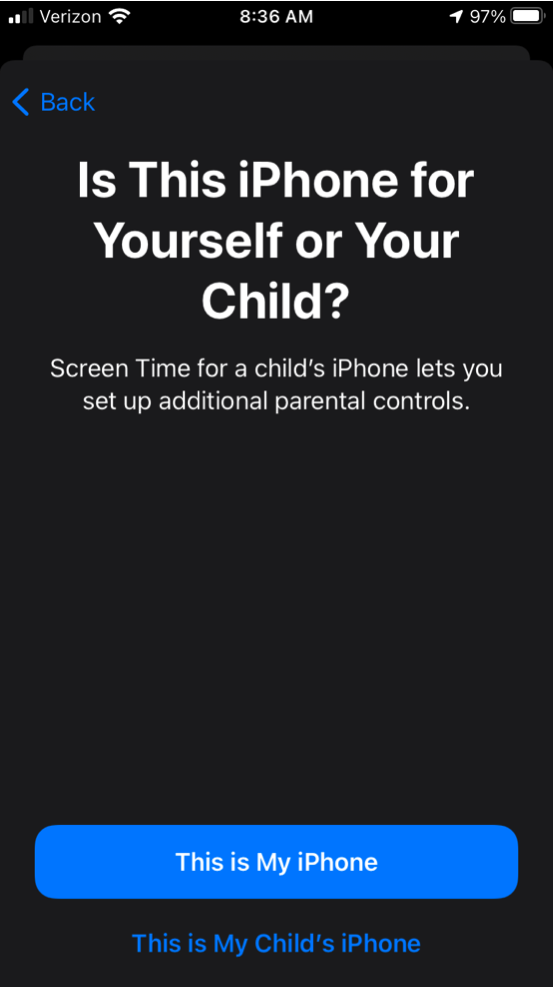
If this is the first time Screen Time has been used on this device it will need to be enabled. A screen like this should automatically come up. Tap the Continue button, then the This is My iPhone button.
 .
.
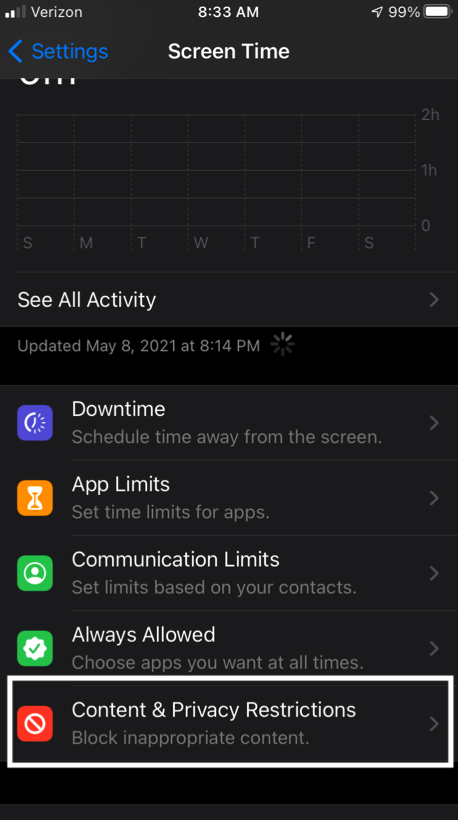
- Next, you should see the default Screen Time dashboard. Select "Content & Privacy Restrictions".
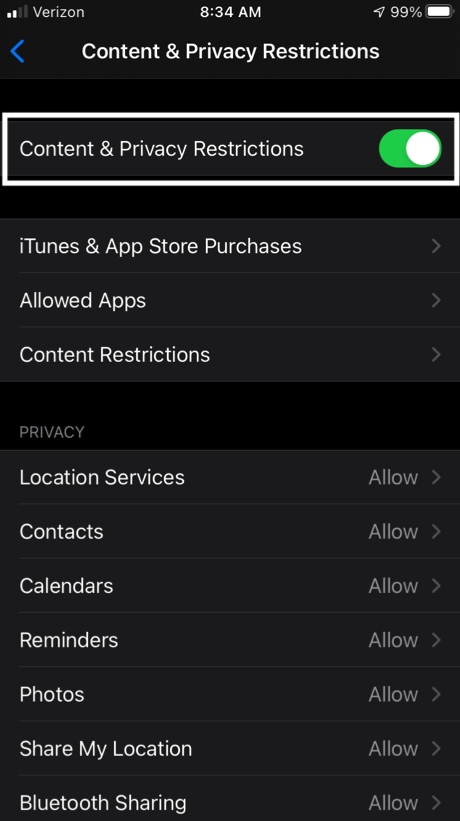
- From here, toggle "Content & Privacy Restrictions" to the on position.
 .
.
- Then, tap "Location Services". Scroll down and ensure the Hearo App is set to "Always". Then scroll up to the top and tap "Don't Allow Changes".
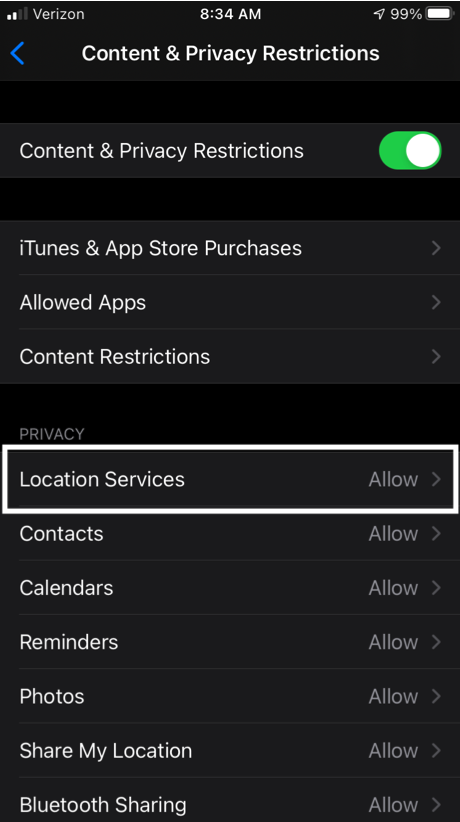
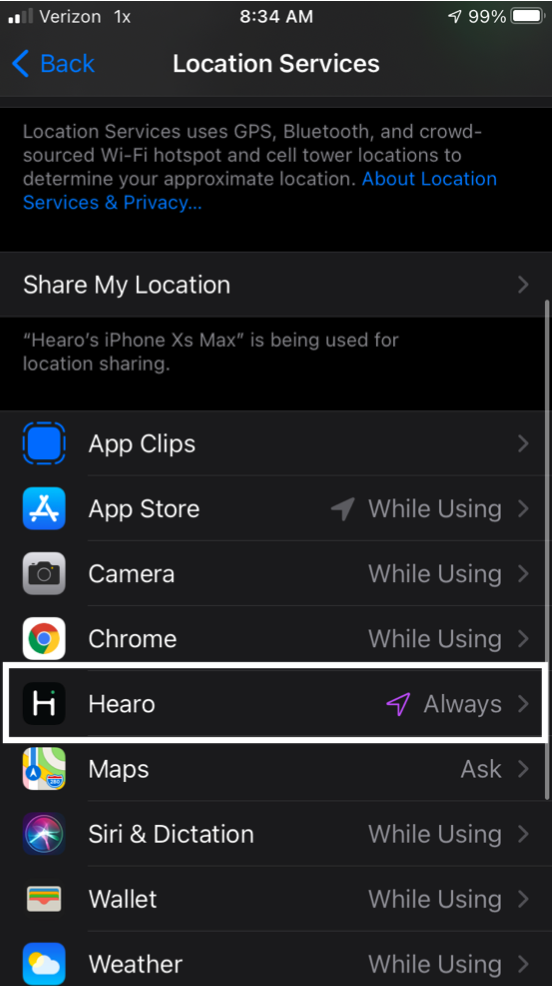
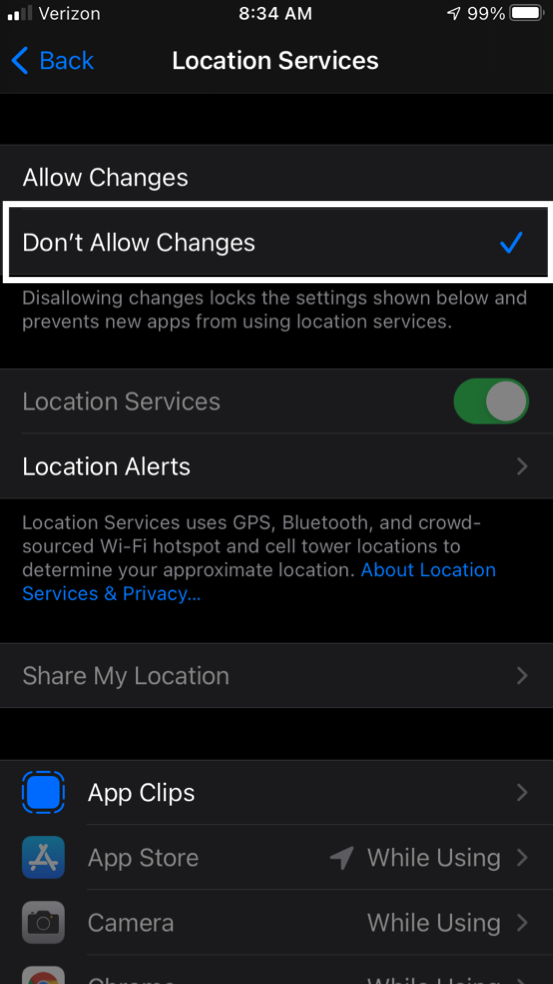
- Now Location Services are locked and cannot be changed unless the user goes into Screen Time and turns off the restrictions.
-
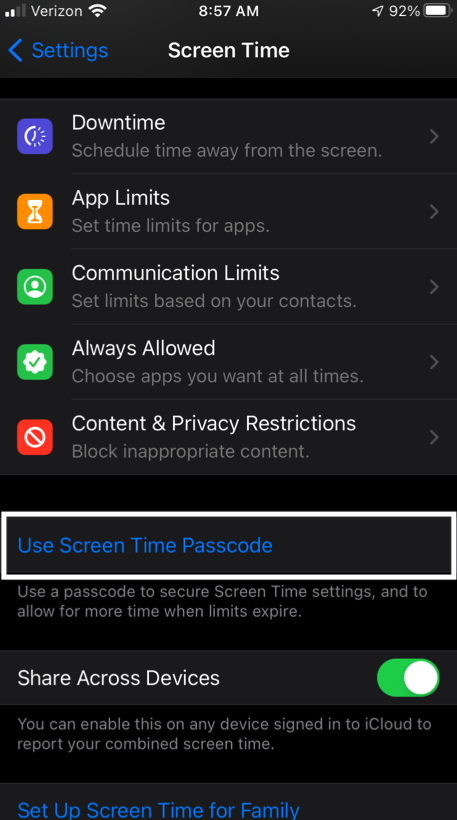
As an extra layer of security, Screen Time itself can be locked with a passcode to prevent unwanted changes. To add this, go back to the Screen Time dashboard, scroll down, and select "Use Screen Time Passcode".
-
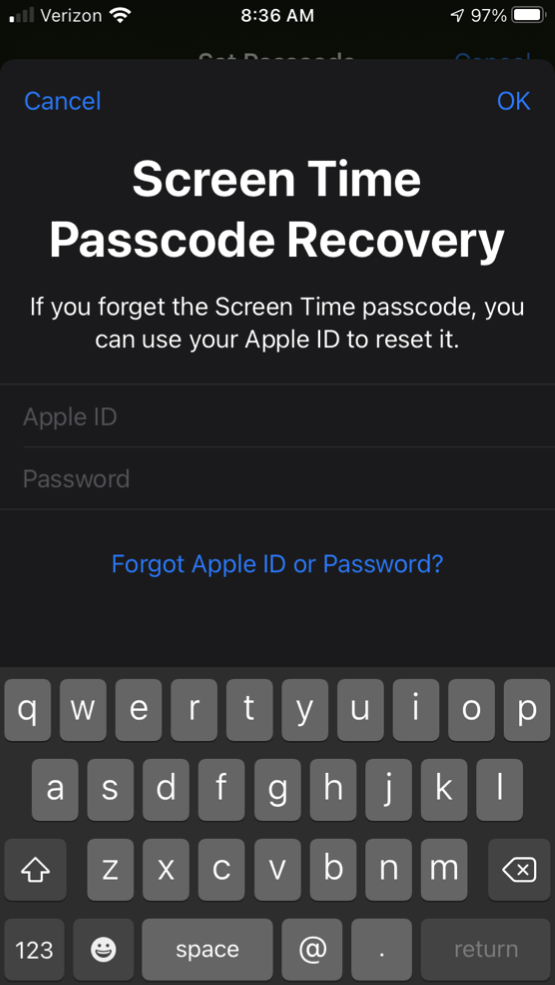
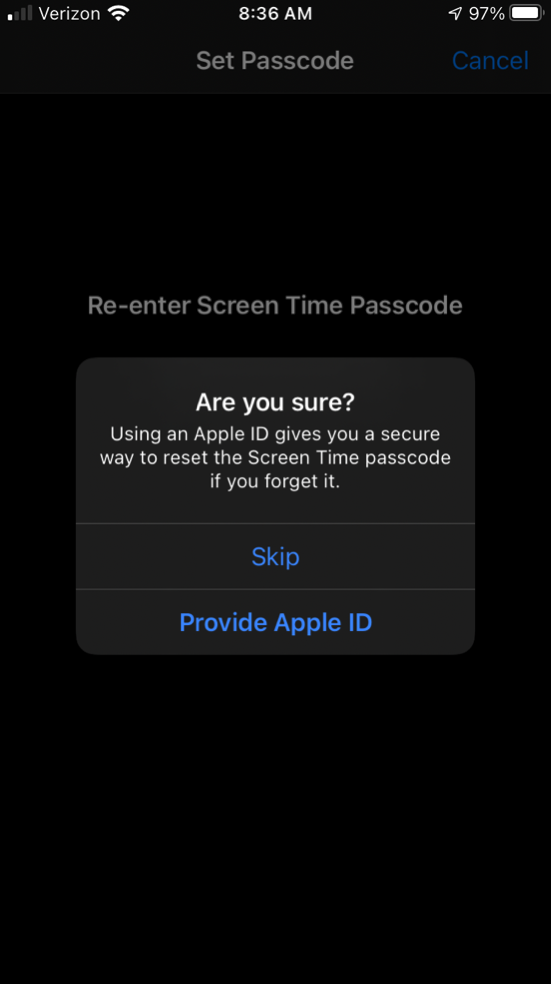
This will prompt you to enter a passcode. After entering a code it will ask you to add a recovery Apple ID to recover the screen time passcode if it's forgotten. This looks like it's required but there is a way out of it. Hit the "Cancel" button and then "Skip" when the pop-up appears.