![Hearo profile Image-2.png]](https://learn.hearo.net/hs-fs/hubfs/Hearo%20profile%20Image-2.png?width=50&height=50&name=Hearo%20profile%20Image-2.png)
Only current Hearo Users with the role of "Company Admin" can create a new User.
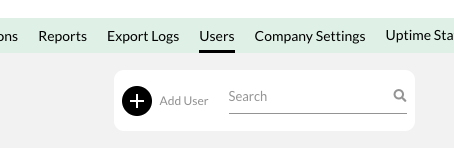
To create a new User, click on the "Users" item in the navigation bar. Once the page loads, you will see a list of the Users assigned to your company.
At the top, to the left of the search bar, click on "Add User".
From there, you will see a pop-up screen with a short form to create a new User:
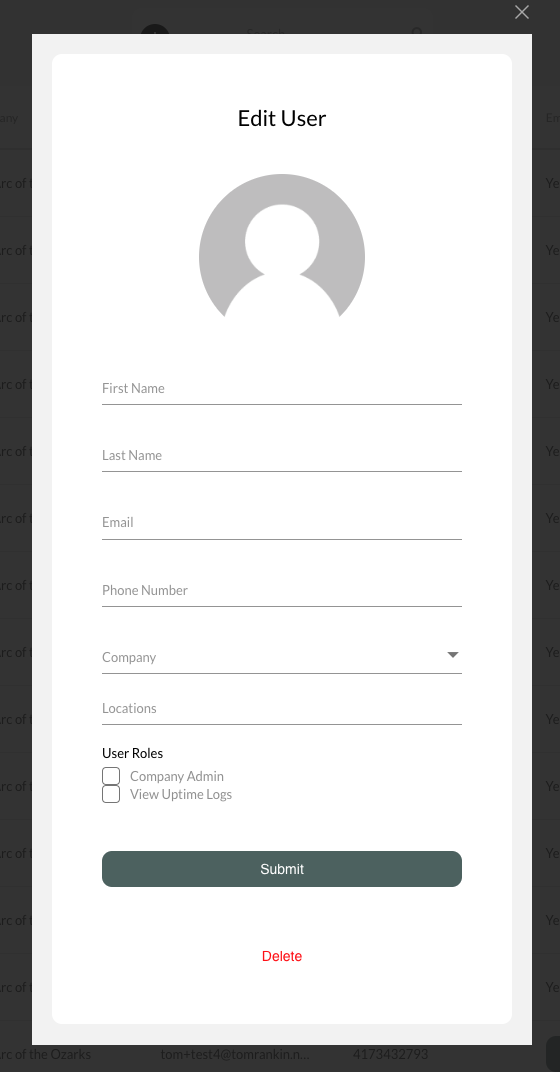
Add a profile picture if you have one available. This will display on the Individual's tablet next to their name. Continue on to fill out the name, email, and company fields.
The Location field is optional. If you assign a Location to the User, they will be able to login to the dashboard and see Location details.
If the "Company Admin" field is checked, the User will be able to edit company-level details, as well as add and edit Users within the company.
If the "View Uptime Logs" field is checked, the User will be able to view the status of all devices in Locations within the company.
Once you click the "Submit" button, the User will receive instructions at the email address provided detailing how to confirm their account and set their password. Please note that this email could potentially land in their spam folder; if the email is not readily available in their inbox, it is likely to have been accidentally relegated there.